> ## Documentation Index
> Fetch the complete documentation index at: https://grandcentral.backbase.io/llms.txt
> Use this file to discover all available pages before exploring further.
# Sign in and select a runtime
> Sign in to the Grand Central console with your organization account and choose the runtime you want to work with.
Sign in to the Grand Central console to reach your dashboard, marketplace, and team settings. The console uses your organization's single sign-on, so you use the same account you use for your other work tools.
## Prerequisites
Before you sign in, make sure you have the following:
* An organization account with access to Grand Central. If you don't have access, ask a team member with the **Admin** role to invite you.
* The console URL for your installation, provided by your Grand Central contact.
## If you were invited
An admin on your team adds you to an installation. What you receive depends on your account:
* If you already have an active Grand Central account, an admin adds you with a role and you can sign in right away.
* If you're new to Grand Central, or were invited before but haven't accepted yet, you receive an invitation email after a second admin approves your invitation. Accept the email, then return to the console to sign in.
The first time you sign in, a short welcome flow asks you to accept the terms and complete your profile. For more information, see [Complete your profile on first sign-in](#complete-your-profile-on-first-sign-in).
For more information about how admins manage access, see [Manage your team](/grand-central-app/team).
## Sign in
Sign in with your organization account:
Go to the Grand Central console URL for your installation.
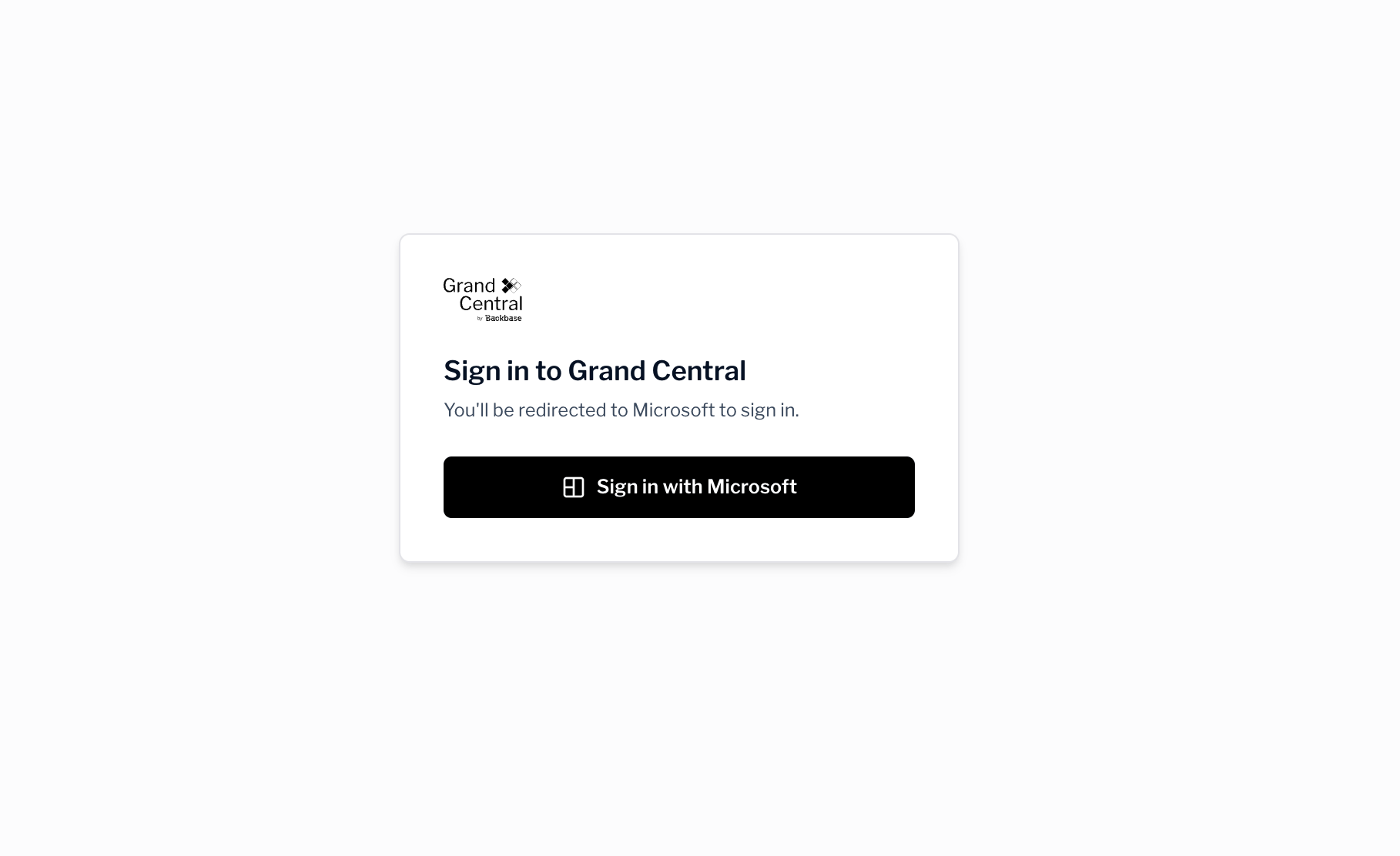
Select **Sign in** and complete your organization's single sign-on. You land in the console after you authenticate.
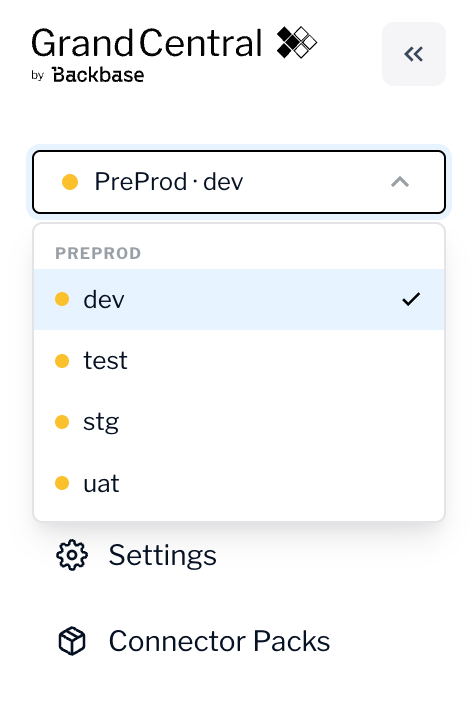
In the console, choose the runtime you want to work with, such as your test or production environment. The console scopes everything you see to the runtime you select.
## Complete your profile on first sign-in
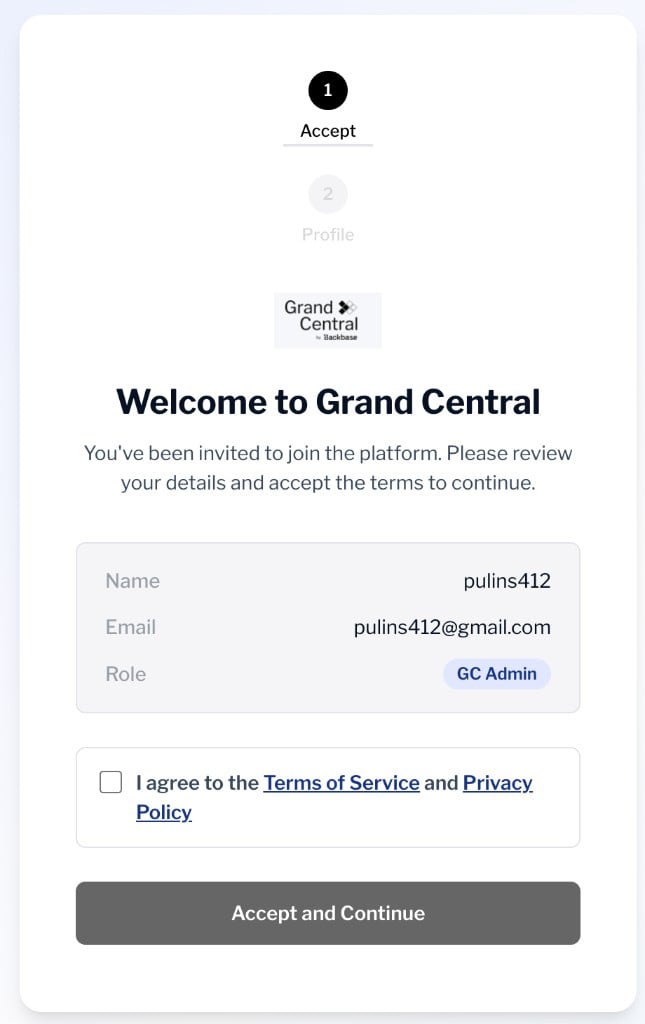
The first time you sign in after an invitation, a short welcome flow guides you through two steps before you reach the console.
On the **Welcome to Grand Central** step, review your name, email, and role. To continue, agree to the **Terms of Service** and **Privacy Policy**, then select **Accept and Continue**.
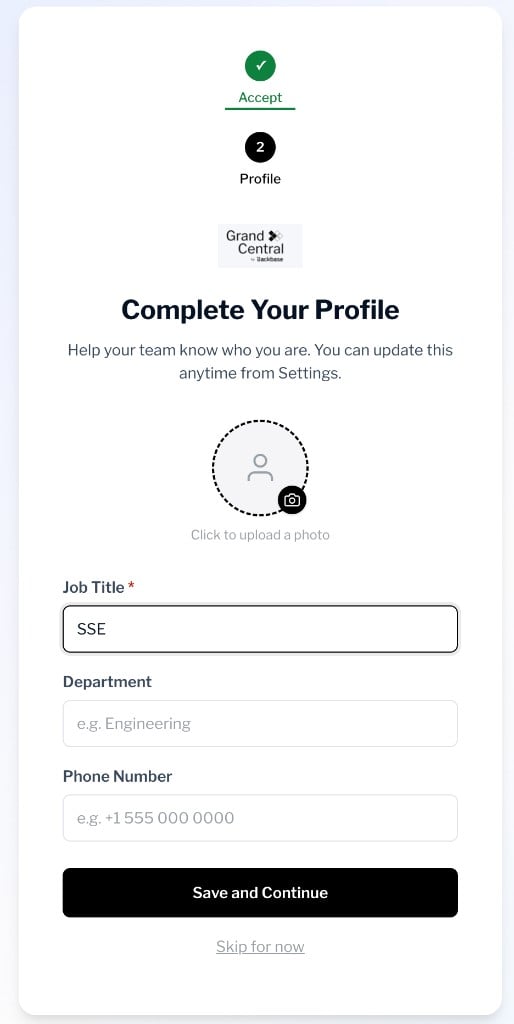
On the **Complete Your Profile** step, add your job title, and optionally a department, phone number, and profile photo. Select **Save and Continue** to finish, or **Skip for now** to complete it later.
Your job title is the only required profile field. You can update your profile anytime from **Settings**.
## Select and switch runtimes
You choose a runtime in the console after you sign in, not on the sign-in screen. Your installation can contain more than one runtime, so you select the environment you want to work with once you land in the console.
To view a different environment later, select the runtime switcher at the top of the console and choose another runtime. The dashboard and connector health update to reflect your selection.
You see only the runtimes you have access to. If a runtime you expect is missing, ask a team member with the **Admin** role to assign it to you. For more information, see [Manage your team](/grand-central-app/team).
## Troubleshooting
The following table lists common sign-in problems and how to resolve them.
| Problem | What to do |
| :----------------------------------------------- | :---------------------------------------------------------------------------------------- |
| You reach an unauthorized page after signing in. | Your account isn't assigned to this installation yet. Ask an **Admin** to invite you. |
| You can sign in but see no runtimes. | You don't have a runtime assignment. Ask an **Admin** to assign you to a runtime. |
| Single sign-on fails. | Confirm you're using your organization account, then contact your identity administrator. |
## Next steps
Review deployed packs and connector health for the runtime you selected.